
Need Help Transferring Files from Android to PC? Here’s How!
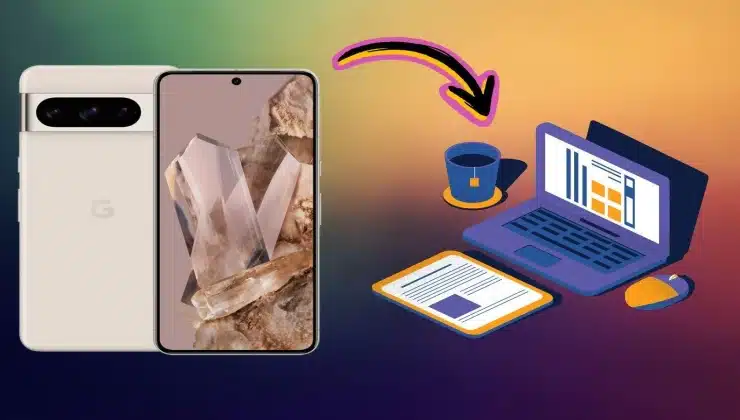
Transferring files becomes essential to prevent your Android phone from slowing down and running out of memory. It’s a common scenario; you just need a reliable method to transfer data and let your phone perform freely. This guide discussed multiple ways to transfer files from Android to PC through wired or wireless connections.
Moreover, this article unveils some fundamental reasons that cause your phone to slow down over time. Other than that, Android users can also explore the latest app to transfer data from Android to PC that supports all devices. Let’s delve deep into the details to find solutions with complete guidelines.
Part 1: Does Android Devices Get Slowed Due to Having Too Much Data?
As a matter of fact, Android devices do get slowed due to having a data load. Some people don’t believe it, but there is a direct relationship between storage capacity and the device’s performance. Moreover, when storage fills up, the performance goes down day by day.
Unfortunately, most Android users are unaware of the reasons behind this hectic effect. Therefore, we have added some fundamental reasons here that cause phones to work slower than before:
- Data Fragmentation: Android users often receive or download data without assigning the correct storage location. On such occasions, dispersed files cause extra load on the smartphone and result in a performance reduction.
- Unnecessary Processes: When you use third-party apps, they keep running needless background processes that consume power from the system. So, unwanted use of CPU or RAM slows down your device.
- Insufficient RAM: For multitasking or heavy-duty processes, your device needs sufficient RAM that keeps it smooth. If your phone is running limited RAM, it can cause system delays and slow processing.
- Apps Cache: Apps usually generate cache files that occupy significant storage space. More apps mean increasing cache data that causes a decline in your phone’s performance due to extra load.
Part 2: How to Transfer Data from Android to PC Wirelessly?
Many Android users prefer a wireless connection to transfer data from Android to PC as it is a more intuitive method. Meanwhile, setting up a wireless connection requires more attention because there might be crucial steps in the process. If you want to use a wireless method, there are two ways for you.
Method 1: Nearby Share
Google launched the Nearby Share function to facilitate users with an innovative wireless data migration solution. Whether you want phone-to-PC file transfer or vice versa, this method provides ease and accessibility. To use the Nearby Share function, your phone and PC should be connected through the same Wi-Fi or Bluetooth, and then you can follow these step-by-step instructions:
Step 1. First, get the Nearby Share tool on your PC and sign in with Google account details to make it functional. Next, set device visibility to the “Receive from everyone” option. Mark the “Keep everyone mode on all the time” option to enable your PC to receive files from all devices. Additionally, you can customize your device name and data-saving location from the “Settings” icon.
Step 2. After setting up your PC as a receiver, select the file from your phone and tap the “Share” option. Then, choose the “Nearby Share” function to proceed with the process. Afterward, it shows available devices from where you can select your receiver PC. Lastly, a notification pops up on the PC to confirm receiving the file, and there, you hit the “Save” option to save the file on the PC.
Method 2: Microsoft Phone Link
The second most reliable wireless data transfer method is through the Microsoft Phone Link tool. It requires your smartphone and PC to be connected to the internet network. This method slightly varies for different Windows versions, but the following steps let you understand how to connect your Android phone with the latest Windows 10/11 via Phone Link:
Step 1. Initially, download the Phone Link tool from the Microsoft Store on your PC. Then, enter your Microsoft account to log in and use the functionality. After that, select the “Android” option to create a QR code to connect with your smartphone.
Step 2: On your smartphone, get the “Link to Windows” app from the Google Play Store and launch it. Select the “Link your phone and PC” option to start the process of a two-way connection. Afterward, scan the QR code generated on the Phone Link app on the PC to sign in.
Step 3. Move to the PC again and select the “Continue” button to proceed. Choose the “Photos” tab to see all the images in your phone storage and similar other tabs. Lastly, pick data files from the Phone Link app and drop them in the PC storage. In addition, you can also “Right-click” on a file and select “Save as” to transfer files from an Android phone to a PC.
Part 3: How to Transfer Data from Android to PC With Wired Methods?
Connecting your Android to your PC via cable is a more feasible and instant solution to transfer data. This section presents two methods that enable you to create a wired connection between your smartphone and computer for data migration and make space in your phone.
Method 1: USB Cable
Data transfer with a USB cable is fundamental to creating a wired connection between an Android phone and a PC. You should know which cable is compatible with your smartphone for stable connectivity. Also, this method works fast and doesn’t require connecting your devices to an internet network. To apply this method efficiently, follow these steps one by one:
Step 1. Connect one end of the USB cable to your smartphone and the other to your computer. Swipe down on the phone display and see the “USB for” notification to open it. In the list of USB options, choose the “Transferring Files/Android Auto” option. After that, your phone connects to your PC for file transfer.
Step 2. Then, the phone storage will be shown as a separate disk labeled with a name similar to your phone. You can access phone data by moving into “This PC” from “File Explorer.” Afterward, open your phone storage and copy files to paste them to your desired location in the computer storage. Once the data migration is started, wait until the transfer process is complete.
Method 2: Wondershare MobileTrans
Wondershare MobileTrans provides the most innovative algorithms to transfer files from Android to PC without restrictions. You don’t even need to pass through configuration to connect your devices for data migration. Interestingly, it turns out to be a one-click solution to transfer your personal data on the computer as a backup.
Moreover, users can use the MobileTrans app to connect all Android phones and tablets of different mobile industries, such as Samsung, Xiaomi, Huawei, and more. Other than that, it provides a dedicated restore and backup function to help you resolve problems related to how to transfer contacts from Android to PC at a high success rate.
Key Highlights
- MobileTrans allows you to share five types of files from PC to Android, including videos, photos, apps, messages, and music files.
- This phone transfer tool supports more than 6000 Android phones and tablets of different versions to connect any phone with a PC.
- Besides that, this data transfer tool helps you migrate data to your computer without overwriting previous data.
Comprehensive Guide to Transfer Files from Android to PC Using Wondershare MobileTrans
Using MobileTrans for mobile-to-PC file transfer would be the best way for you. To carry out this method quickly, follow these steps one by one for seamless data migration from your Android phone to your computer without limitations:
Step 1. Launch the Tool and Proceed to Export Data Feature
Start by downloading the MobileTrans tool from the official website onto your computer. Launch the tool to access all transfer functions. After launching, connect your Android phone to your computer via a compatible cable. Once the phone is connected, open the “Phone Transfer” tab from the top bar and select the “Export to Computer” option.
Step 2. Choose Files to Export to Computer from Phone
The next screen shows all the phone data, and you can select videos, photos, apps, music files, or informative texts that you want to transfer to your PC. Then, choose the “Export” option to start exporting to your computer.

Step 3. Ensure Your Phone Stay Linked Until Completion
After hitting the “Export” button, the tool shows export progress in the next window. To continue, ensure your phone stays connected to the computer until the data transfers. You can unlink the device after the completion of the export process.
Final Words
This article has presented multiple wired and wireless methods to transfer files from an Android phone to a PC. In these methods, Wondershare MobileTrans provides the safest and most robust solution to transfer unlimited data of multiple types. We have included some primary reasons that make your phone work slowly so you can learn about it to prevent potential damage.


