
How to Transfer Data from Android to iPad Without AirDrop/Bluetooth
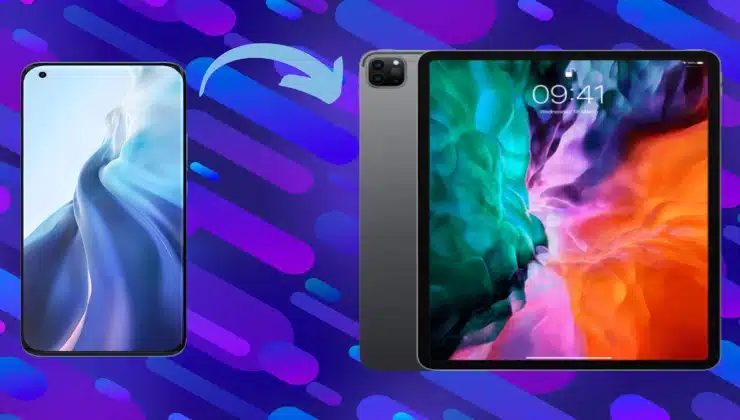
As we know, the iPad has features that help students study high-resolution eBooks and make notes of them. To optimize your study process, you can transfer those eBooks or any other data from Android to iPad devices.
However, it is impossible to transfer files from Android to iPad directly with AirDrop or Bluetooth, which can cause some issues. This article will try to solve this problem by discussing how to transfer data between these devices.
Part 1: Why You Cannot Transfer Data from Android to iPad With AirDrop/Bluetooth?
You cannot transfer files from Android to iPad directly with AirDrop/Bluetooth due to differences in the underlying technology. Android devices use different protocols and technology for file transfer that may not be compatible with Apple’s proprietary protocols. The reasons that you cannot transfer data have been discussed below:
- Platform Difference: The operating system of Android and iOS is different from each other. That is why direct compatibility between them for file sharing is not possible.
- Lack of Compatibility: Apple devices use the AirDrop and Bluetooth protocols that are not designed to be compatible with Android devices. As a result, file transfer from Android to iPad is not supported between these devices.
- AirDrop is Apple-Specific: AirDrop is a proprietary technology developed for iOS and macOS devices. Moreover, it uses a combination of Wi-Fi and Bluetooth for file transfers but is only available on Apple devices. As Android devices do not support this feature, they cannot communicate directly with iPads using this method.
- Closed Ecosystem: There is a secure ecosystem of Apple where AirDrop is available for transferring files. As a result, direct integration of Apple devices with Android devices is not supported.
- Protocol and Technology Variations: Android and Apple devices use different protocols and technology for file transfer. These differences in both systems prevent the direct Android file transfer to iPad.
Part 2: How to Transfer Data from Android to iPad With Wondershare MobileTrans?
As mentioned, users cannot transfer files from Android to iOS devices directly for several reasons. To make it possible, you can consider Wondershare MobileTrans. This toolkit lets you move 18+ data types between phones, including photos, videos, contacts, and more. Additionally, this tool ensures secure data transfer from all phone devices based on Android and iOS systems.
With this tool, You can transfer data faster than moving with Bluetooth or apps. This tool can also transfer 5 data types from computers to your iPad or Android device. Moreover, you do not require an internet connection to transfer the data from one device to another. Follow the steps below to learn how to transfer files from Android to PC or iPad:
Step 1: Launch the Software and Start the Process of Data Transfer
Start by downloading this data transfer software from its official website to your system. Then, launch it and choose the “Phone Transfer” tab option from the top to access the features. After this, select the “Phone to Phone” option from different data transfer options.

Step 2: Connect iPad and Android Device With Computer
Connect the iPad and Android to your computer through a USB cable. After that, the software displays devices as “Source” and “Destination” to clear out the direction of the data transfer. If it’s not according to your order, click the “Flip” button to change the direction of data transfer. Then, choose the data you want to transfer and press the “Start” button to start the process.
Step 3: Keep Android and iPad Connected for Successful Transfer
Following this, this data transfer software transfers the required data from the source device to the destination device at a blazing-fast speed. Meanwhile, keep your devices connected for a secure Android-to-iOS file transfer process. Once the process is completed, you can check the number of photos, videos, and other data that have been transferred.
Part 3: What are the Other Potential Features of Wondershare MobileTrans?
Wondershare MobileTrans is the best solution for transferring data from Android to iPadOS-based devices. It also supports data transfer from one device to another based on the same operating system. This phone transfer tool offers some other vital features to users that have been discussed below:
1. WhatsApp Transfer
This feature of MobileTrans lets you transfer your WhatsApp data from old to new phones. Plus, it even helps you to transfer WhatsApp Business files from iPhone to Android and vice versa. Moreover, it supports the 6000+ iOS and Android devices for transferring different data types.
In short, you can easily manage and share WhatsApp data with the help of this innovative tool. This includes messages, stickers, photos, videos, and audio attached to chat history. Other than WhatsApp, users can move WeChat, Kik, Viber, LINE, and GB WhatsApp to their new phones with this tool.
2. Backup and Restore
MobileTrans backup and restore feature can help you backup and restore your data. This feature also allows users to export WhatsApp Business messages to computers in PDF or HTML file format. You can even restore the deleted WhatsApp data from different Android devices.
Users can use this tool feature to back up their phone to a computer and free up space. Furthermore, you have the option to add passwords to encrypt the backup to secure personal information.
3. Playlist Transfer
Everyone has different music tastes and makes a playlist accordingly to avoid repeatedly searching. While switching from one platform to another, they have to make a playlist again. It can be time-consuming and frustrating for you to generate a playlist on a new platform.
To solve this problem, MobileTrans has a feature that moves the music library across different music streaming platforms. You can quickly transfer the YouTube Music playlist to Spotify with the help of this feature. This feature also supports Deezer, Apple Music, and other music streaming platforms.
4. Restore WhatsApp from Google Drive to iPhone.
This feature makes it possible to restore the WhatsApp data from Google Drive to the iPhone. Although this tool’s Android to iOS feature supports transferring WhatsApp data to iPhone, it doesn’t restore WhatsApp data stored in Google Drive, which is impossible.
However, this feature of MobileTrans lets the iPhone user restore WhatsApp data from Google Drive to the iPhone. In addition to that, you can merge this restored data with existing WhatsApp data.
Conclusion
In short, you cannot transfer files from Android to iPad with AirDrop or Bluetooth, as both devices have different operating systems. For sharing files from one device to another with a separate OS, MobileTrans is the best option. This tool’s phone transfer feature can help you transfer data from Android to iOS-based devices. This software offers multiple innovative features, such as backing up and restoring WhatsApp data or transferring playlists.


